
Knowledge Base
Adoption of a Unifi Access Point via SSH
Step 1
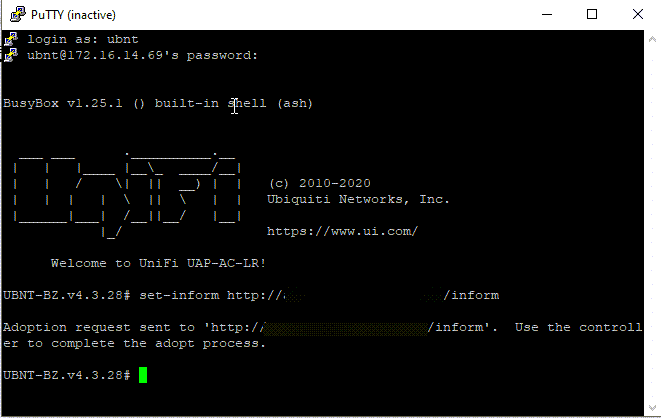
SSH in to the Unifi Access Point using the default ubnt / ubnt password
Hint: if the AP isn’t brand new and you’re trying to fix it via SSH you will need to find the username and the password from the old controller. As of writing this is located at System Settings > Controller Configuration > Device SSH Authentication. Once you log in you’re going to want to type in set-default to factory reset it first.
Step 2
Upgrade the firmware first by typing in
upgrade https://dl.ui.com/unifi/firmware/U7PG2/4.3.28.11361/BZ.qca956x.v4.3.28.11361.210128.2309.bin
Where https://dl.ui.com/unifi/firmware/U7PG2/4.3.28.11361/BZ.qca956x.v4.3.28.11361.210128.2309.bin is the current firmware available at Unifi Downloads
Step 3
Connect back to the Unifi Access Point using the default ubnt / ubnt password
Set the inform address as
set-inform http://thecontrollerlocation.com.au:8080/inform